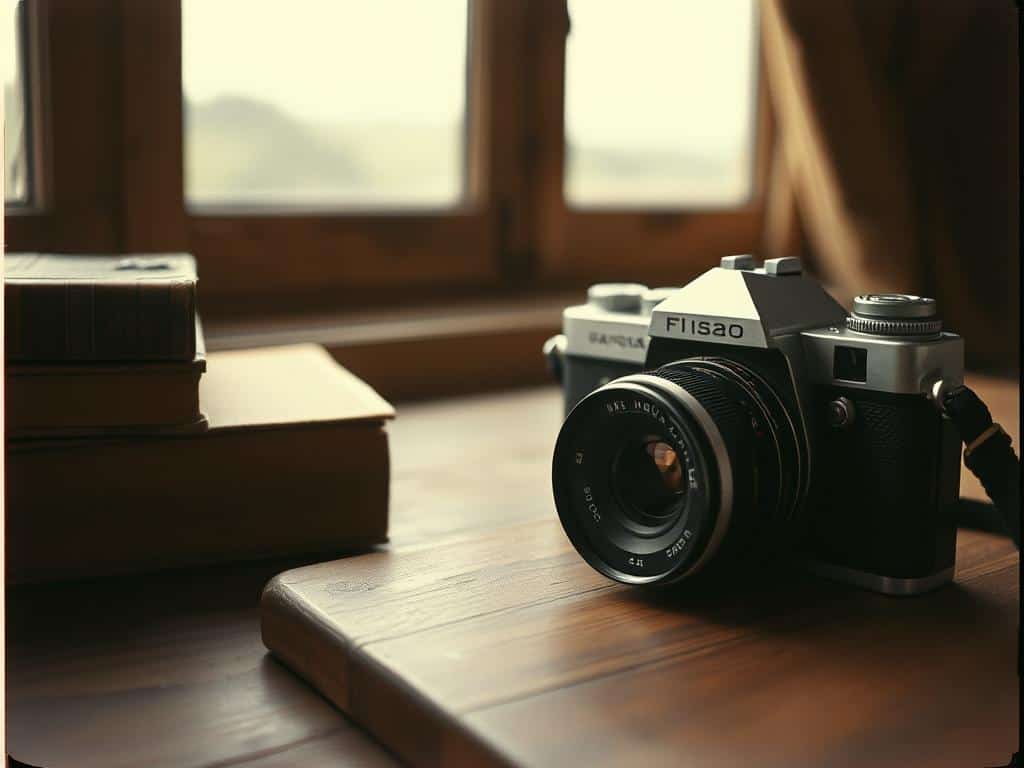
Did you know vintage photography styles are now more popular than ever? This trend shows a love for the unique, textured images of old films. Film grain editing lets me add a touch of classic film to today’s photos. It’s a way to make modern pictures feel timeless and full of character.
In this guide, I’ll show you how to add film grain to your photos. We’ll look at different methods and tools, like Lightroom and Evoto AI. You’ll learn how to get that perfect vintage look that grabs everyone’s attention.
Key Takeaways
- Film grain adds texture and depth without compromising image resolution.
- Classic film effects can be achieved with precise adjustments in grain amount, size, and roughness.
- Subtle grain enhances portraits by softening blemishes for a flattering look.
- Both color and black-and-white photographs benefit from well-balanced grain settings.
- Excessive grain may negatively affect printing quality; moderation is key.
Understanding Film Grain and Its Appeal
Film grain is key in how we see photos, even old ones. It makes photos feel special and brings back memories of film cameras. This texture adds a unique charm to photos.
What Is Film Grain?
Film grain comes from silver halide crystals in old film. It changes with the film’s ISO. For example, Kodak Tri-X 400 has a big grain, while Kodak T-MAX 100 has a finer one.
This grain gives photos a special touch that digital photos often miss. It’s a tactile quality that makes photos stand out.
The Importance of Film Grain in Digital Photography
Using film grain in digital photos adds a cinematic touch. It helps hide digital noise from high ISOs, making photos look great. Famous films and photographers use grain to add emotion and character.
Choosing the right film stock, like Fujifilm’s Velvia 50 for landscapes, shows a photographer’s style. Film grain in digital photos offers a mix of old and new styles.
Film Grain Editing Techniques for Stunning Vintage Effects
Using film grain in my digital photos adds a unique vintage charm. I can turn simple pictures into art that feels like old movies. PicsArt editing and Lightroom grain adjustments are two top ways to do this.
Using PicsArt to Add Film Grain
PicsArt makes it easy to add film grain to photos. I start by importing my image and then explore the film filters. The app’s simple design lets me adjust grain settings like Input Shift and Output Shift.
I also tweak the dust masks to add subtle flaws, just like in old film photos. This step brings out the analog feel, making the image more charming.
Adjusting Grain Settings in Lightroom
Lightroom is great for getting a vintage look. I begin with settings that mimic film: 25–30 amount, 20–30 size, and 50–60 roughness. These settings give a natural, textured look, like 35mm film.
Checking my images at 100% zoom is key to making the grain look real. Then, I zoom out to make sure the grain doesn’t overpower the picture.
Creative Textures and Filters to Enhance Your Photos
In my photography journey, I’ve found that adding creative textures and film grain boosts the vintage look of my photos. Mixing film grain with effects like vignetting or soft contrast adds a touch of elegance. This makes the viewer feel like they’re stepping back in time.
By trying out different combinations, I can create a wide range of emotions and moods. My photos get a unique, nostalgic feel that people love.
Combining Film Grain with Other Effects
Using editing filters like Drama or Vignette with film grain makes my photos more interesting. It adds depth, just like old film cameras. I can tweak settings in tools like PicsArt to make each photo special.
This method is key for making my images stand out. It helps soften digital photos or add texture to portraits.
Popular Presets for Film Grain Aesthetics
To make editing easier, I use custom presets in PicsArt. I save my favorite looks as Replays. The app has many grainy filters, from the 1970s to the 1990s.
Choosing the right filter and adjusting settings lets me create vintage images that tell stories. They invite viewers to dive into the atmosphere I’ve created.
