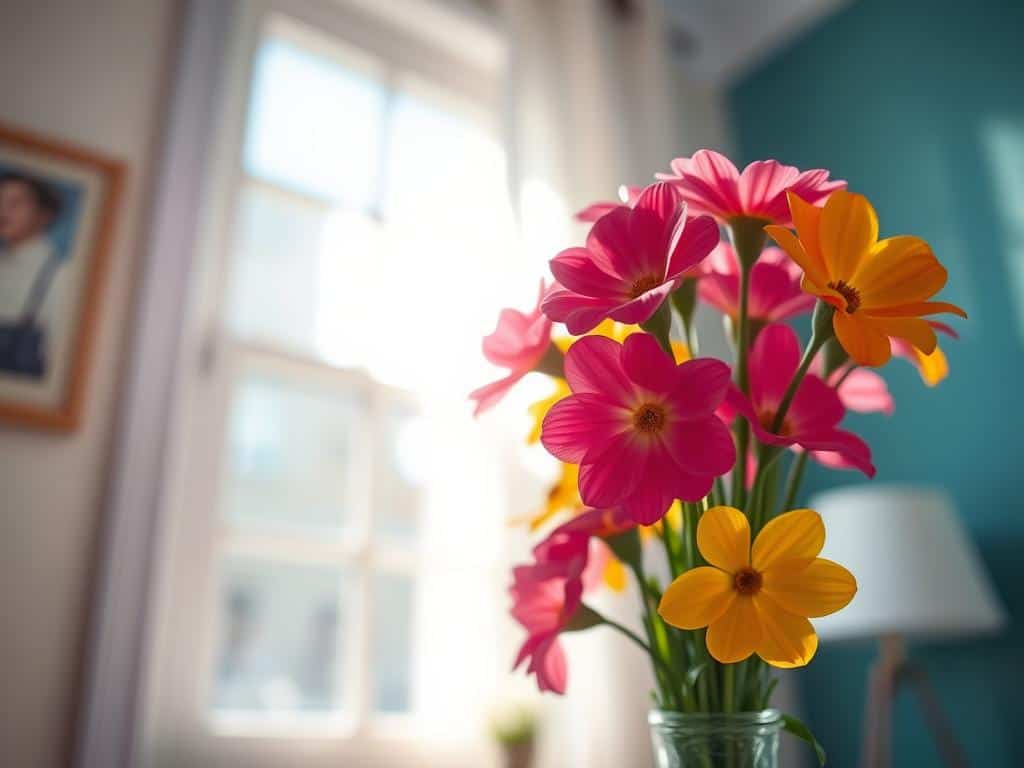
Did you know selective color photos can make an image pop? This technique grabs the viewer’s attention. It’s like a young boy kissing a girl with a bright red rose in the background. Only the rose is in color, making it stand out.
By learning selective color editing, I can make my photos more appealing. I’ll show you how to pick the right photos and use Adobe Photoshop to enhance them. This guide will help you understand and use selective color editing.
Key Takeaways
- Selective color can significantly enhance the visual impact of photographs.
- This technique guides the viewer’s eye to the most important elements of the image.
- Using saturation judiciously helps maintain viewer comfort and focus.
- Isolating colors can create balance, symmetry, and compelling compositions.
- Precise adjustments and editing techniques enhance overall image quality.
Understanding Selective Color Editing
Selective Color Editing is a cool part of photography that grabs your eye with color tricks. It turns pictures black and white but keeps certain colors bright. This makes the image stand out and focus the viewer’s attention.
What is Selective Color Editing?
This method highlights one color in a mostly black and white photo. You can do it in-camera or with software. It makes the viewer notice the photo’s key parts. But, it’s important to choose colors that work well together.
Clean lines and smooth color changes make the effect better. This way, the photo looks more striking.
The History of Selective Color in Photography
Over time, Selective Color Editing has changed, adding new ways to make photos pop. Some like to do it in-camera, while others prefer software for more control. Programs like Lightroom and Photoshop are great for keeping colors bright.
Knowing how this technique has evolved helps us see its value today. It shows how photography keeps getting more creative and interesting.
Choosing the Right Photos for Selective Color Effects
Creating stunning images with selective color effects starts with the right photos. I focus on images with strong, vibrant focal points. This technique makes the viewer’s attention stay on the important parts while the rest turns monochrome.
Identifying Suitable Subjects
I look for vibrant colors against muted backgrounds to find the right subjects. For example, a bright flower or colorful clothes against a dull cityscape make great contrasts. These visuals add emotional depth and grab the viewer’s attention.
Common Subjects that Work Well
Some subjects work better than others for selective color effects. Flowers, fruits, and urban scenes are great for experimenting. Portraits with colorful clothes or accessories also benefit, making the subject pop against a black-and-white background.
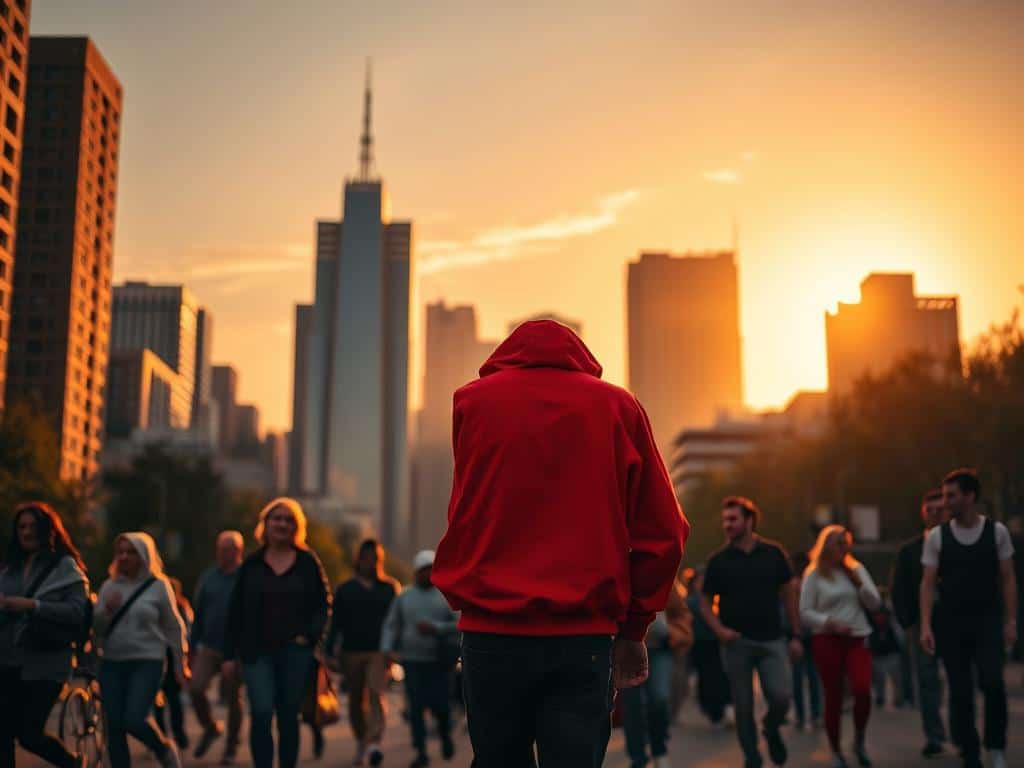
Steps to Execute Selective Color Editing in Photoshop
To start selective color editing, I follow a few key steps. These steps can turn a regular photo into a stunning image. They focus the viewer’s attention on certain colors within a black and white filter.
Importing Your Image and Making Selections
I first import my chosen photo into Adobe Photoshop. I use the Quick Selection tool to pick the areas I want to keep in color. This tool is great for images with clear colors.
For more complex images, the Color Range tool is better. It lets me adjust the Fuzziness slider for more precise color selection.
After making my initial selection, I use the Inverse selection function (Shift+Ctrl or ⌘Command I). This lets me choose the pixels to turn monochrome, creating vibrant color contrasts.
Applying the Black and White Filter
Then, I add a black and white filter with a Black & White adjustment layer. This makes the whole image monochrome, creating a new layer for easy editing. I use a white paintbrush to show parts of the image in color.
Using a black brush, I can hide parts of the black and white filter. This gives me more control over the editing.
Final Adjustments and Color Toning
To finish, I use the Selective Color tool to adjust specific colors like Reds, Yellows, and Blues. Each slider makes subtle but effective changes. By tweaking these, I can improve my image’s look.
For example, increasing Cyan reduces Red values, improving the image’s aesthetic. This way, my color adjustments are non-destructive, keeping the original image safe while achieving the desired look.
Conclusion
Selective color editing is a powerful tool for photographers. It lets us focus on key parts of an image. By using Photoshop’s 9 color channels, we can make our photos stand out.
This technique helps us tell stories with our photos. Whether it’s a wedding dress or a landscape, it makes a big difference. It’s changed how I take photos, making them more meaningful.
Photography is about feeling and connection. Selective color editing helps us create those feelings with precision. I suggest other photographers try it out. It opens up new ways to express ourselves and can greatly improve our work.
